Calendar · Tasks · Projects · Booking · People

Finally, a calendar that gets your whole life.

Every Microsoft Outlook calendar you have, work and personal, together with your tasks, projects and booking links. Without the chaos, the clones, or the ridiculous price tag.

  • See every calendar in one view, with no cloned events
  • Plan your work around your real availability
  • Bring in your team, your assistant and your family

Built by a frustrated operator.
Priced like a normal person.

Real schedules. Real work. Real life.
Illustrative Flyte week view with synthetic demo data: a founder's week across three companies, Calderwyn Health in teal, Ostrelle Capital in violet and Harbor & Pine in amber, with a Where I'll be row naming each day's places (HQ, the Ostrelle office, and HQ & Remote on Friday), tasks placed in free time, protected family dinners, and a Planning panel with two scheduling requests and the tasks that still need time.

What Flyte does

  • All your calendars. One view.

    Every Outlook calendar, from every company, side by side. Nothing is copied between your calendars.

  • Tasks that fit your real day.

    Give a task a deadline and Flyte finds real free time for it. Your meetings stay put.

  • Projects that actually happen.

    List, Board, Table and Gantt. Work lands on the calendar of whoever does it.

  • Built for real people.

    Teammates, an assistant and family, each with exactly the access you choose.

  • Booking that respects your time.

    Links with your logo and colors that only offer times you're truly free.

Same frustrations. A better solution.

Different tools solve one piece of the puzzle. Flyte brings it all together.

  • The Calendar Cloner

    Copies your events into every calendar so the others look busy. Now there are five versions of the same meeting.

  • The Link‑Only Tool

    Great for sending a booking link. That's about it: your tasks, projects and team live somewhere else.

  • The AI Overlord

    Moves your schedule around on its own. You wake up and your day looks different again.

  • The 5‑App Stack

    Calendar here, tasks there, projects in another tab, booking somewhere else. And a bill for each.

The Flyte way

  • One unified view, no clones
  • Plans with you, not over you
  • Calendar, tasks and projects together
  • Booking and delegation built in
  • Fair, affordable pricing

How it works

Made for people who run more than one thing.

Shown with a fictional demo account: Alex Rivera runs three companies, with an assistant, a team and a family who each need something different.

01Your week

A busy week across three companies, in one calm view.

Every Outlook calendar lands in one week, colored by company. You see where you'll be, what's protected and where your work fits, on your desk and on your phone.

  • Each company keeps its own color and its own Microsoft account
  • Where I'll be shows the office you're in, or that you're remote
  • Plan week finds real free time for tasks before their deadlines, and you approve the plan
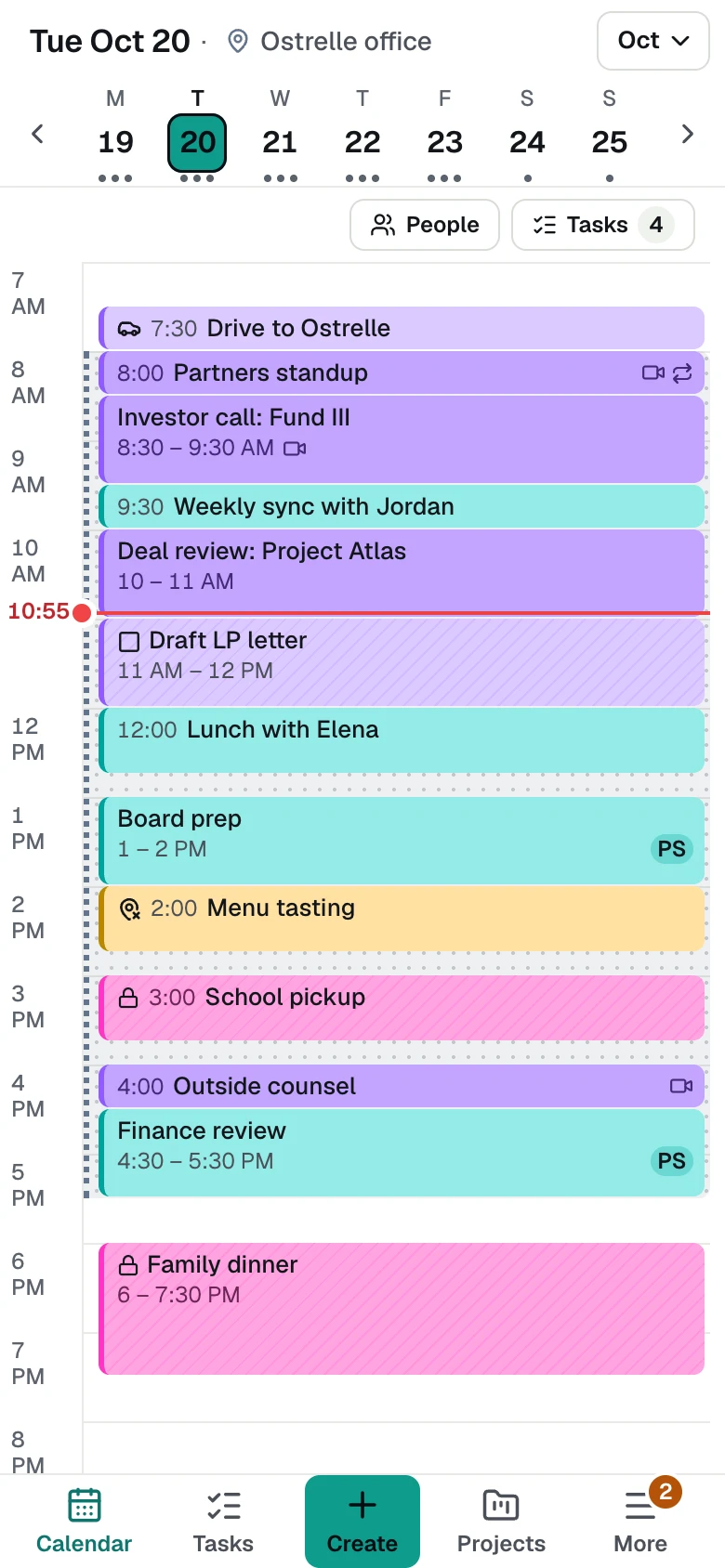
Illustrative Flyte phone view with synthetic demo data: Tuesday at the Ostrelle office as a compact timeline under a week strip, from a 7:30 AM drive to a 6 PM family dinner, each meeting in its company's color, the time now, 10:55 AM, near the end of the deal review, and the office as a lightly dotted band with a dotted edge behind the working day.
  • Calderwyn Health
  • Ostrelle Capital
  • Harbor & Pine
  • Where I'll be: Ostrelle office
  • Protected: Family dinner

02Executive assistant

Your assistant schedules. You stay in charge.

Give your assistant scheduling rights on the calendars you choose. They propose or add meetings for you, and anything your rules protect waits for your OK.

  • Propose only, or add directly: you decide per person
  • Protected meetings need your approval first
  • They see only what you granted, nothing else of yours
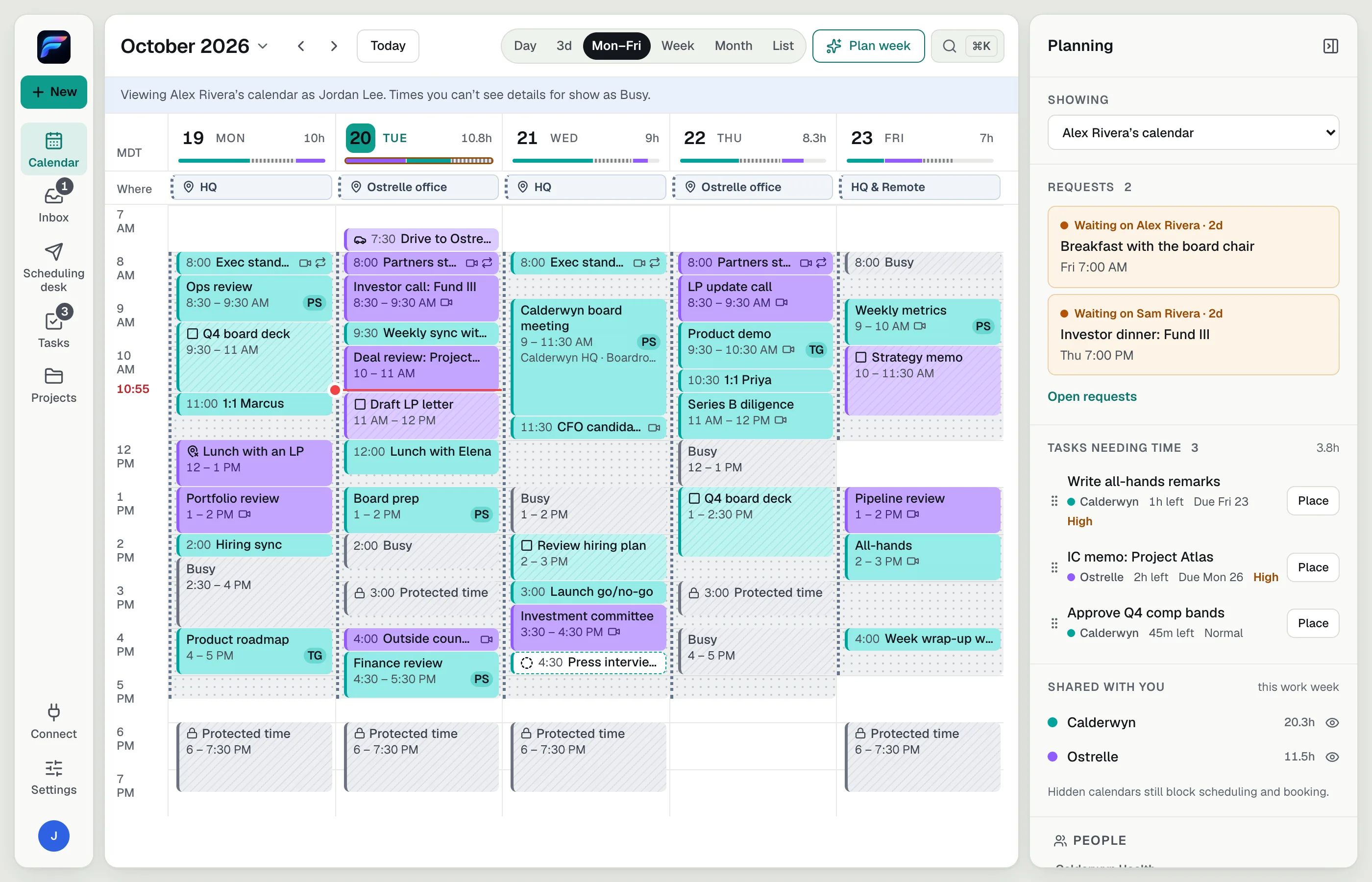
Illustrative Flyte view with synthetic demo data: the assistant, Jordan Lee, viewing Alex Rivera's work week. Calderwyn Health and Ostrelle Capital show in detail, Harbor & Pine only as Busy and family time as Protected time. Two of Jordan's requests are waiting: a breakfast on Alex's approval and an investor dinner on Sam Rivera's.

03Family approvals

Your family sees busy, not business.

Choose what your family can do: see when you're busy, add to your calendar, or ask first. Your own approval rules decide which plans wait for their yes.

  • Busy-only access shows times, never titles, people or places
  • Your rules: evenings, dinners, travel, days away
  • Family members are always free, on every plan
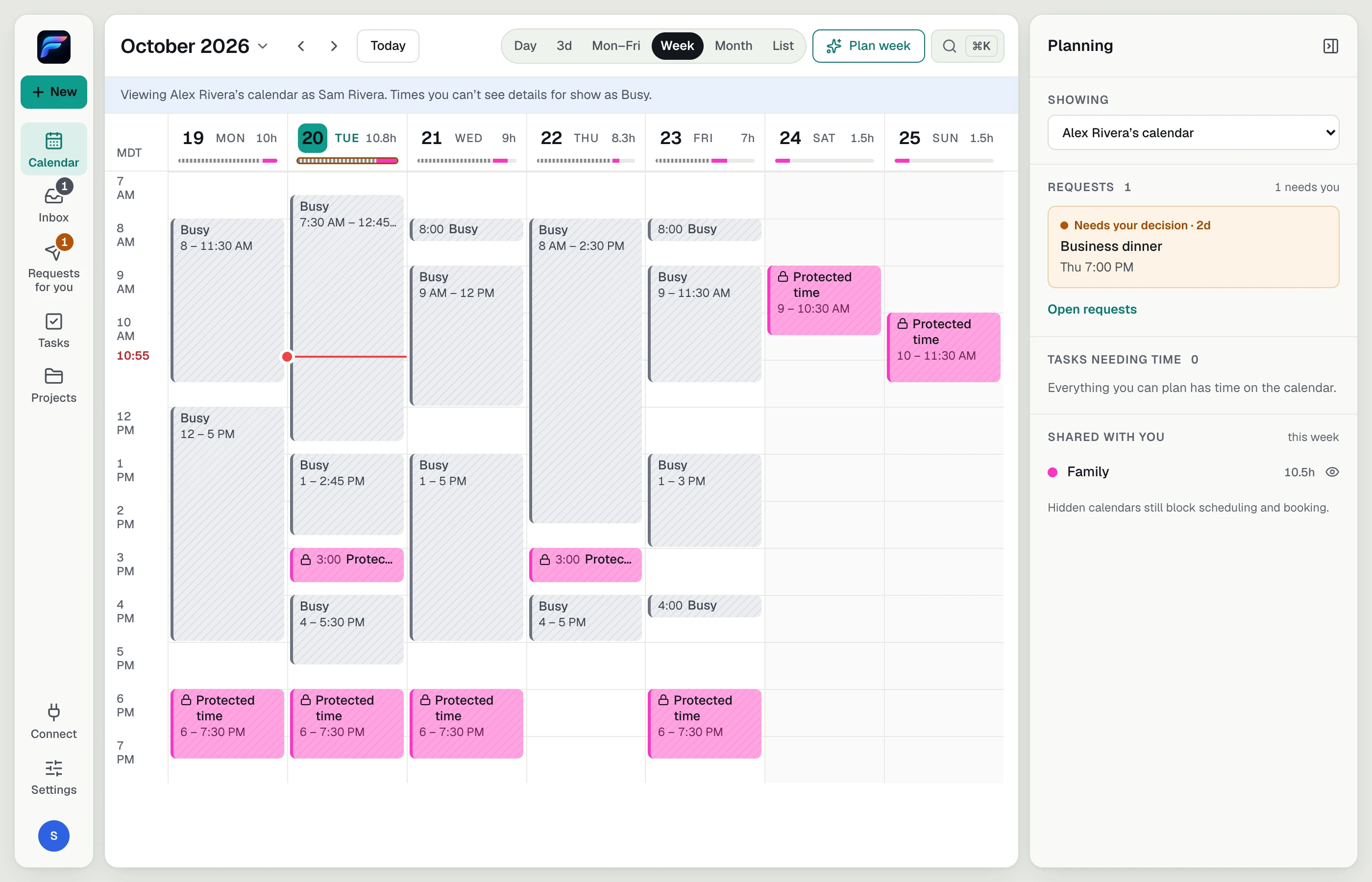
Illustrative Flyte view with synthetic demo data: Sam Rivera, the family approver, sees Alex Rivera's work week as gray Busy blocks with no titles and family time as Protected time, with one request that needs Sam's decision: a business dinner on Thursday at 7:00 PM.

Busy means busy.

04Team projects

Projects that land on the calendar.

Plan with your team in List, Board, Table or Gantt. Assign work, comment and mention people, and project work goes on the calendar of whoever does it.

  • Four views of the same work: List, Board, Table and Gantt
  • Comments, mentions and workstreams keep everyone current
  • Milestones and dependencies for bigger programs
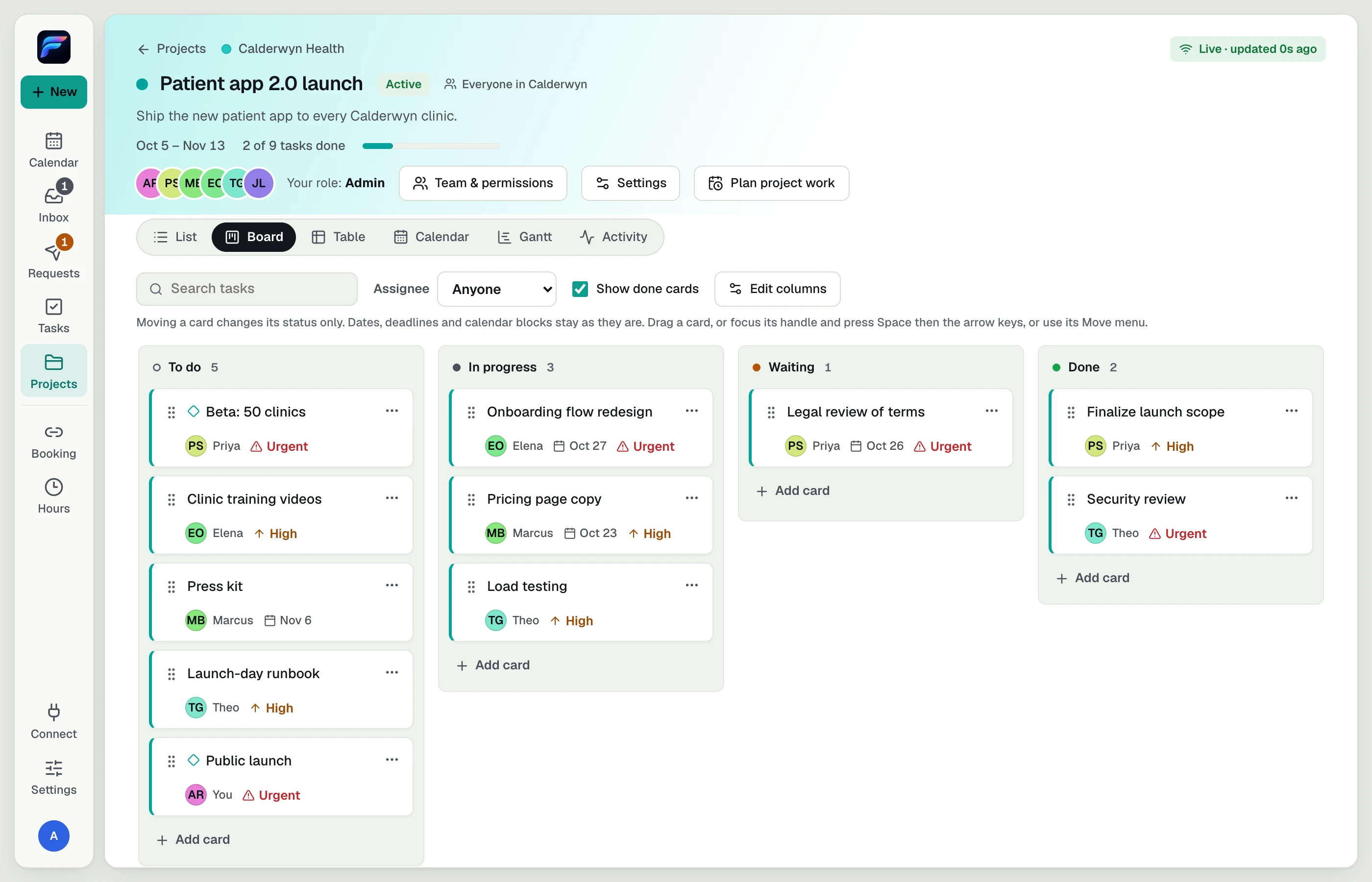
Illustrative Flyte team project with synthetic demo data: the Board view of Calderwyn Health's Patient app 2.0 launch, with To do, In progress, Waiting and Done columns, cards assigned to Priya, Elena, Marcus and Theo with due dates and priorities, and two milestones.

05Multiple companies

Every company kept separate. Seen together.

Connect each company's Microsoft account on its own terms. You see everything in one place, while each team sees only the company it belongs to.

  • Separate Microsoft accounts and calendars for each company
  • Show or hide a company in one click, each in its own color
  • Company calendars and find a time together with teammates
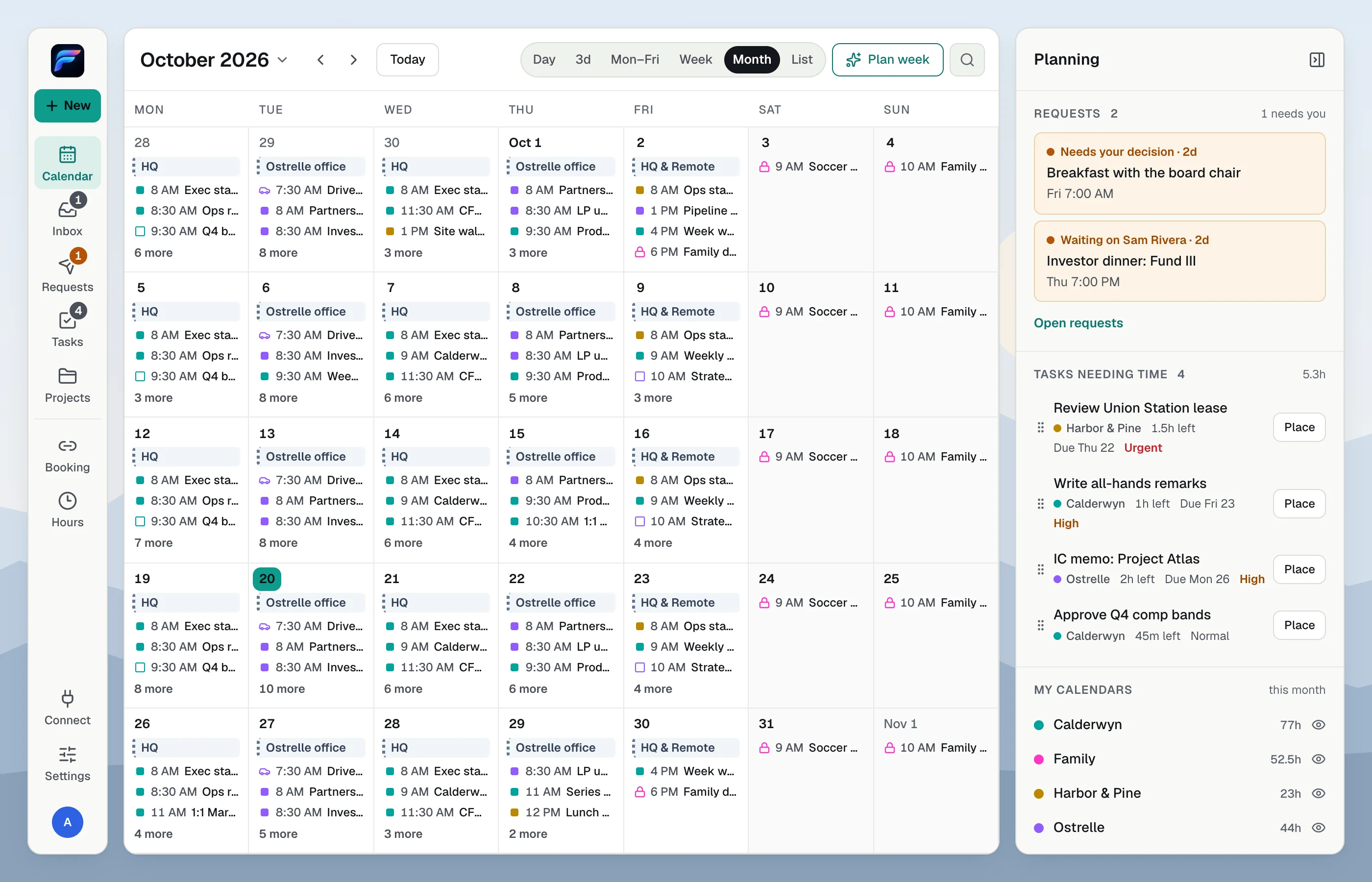
Illustrative Flyte month view with synthetic demo data, on the Peaks background: Calderwyn Health, Ostrelle Capital, Harbor & Pine and Family, each in its own color on one calendar, each workday naming where Alex will be (HQ & Remote on Fridays), with the hours each took this month and a show or hide control for each.

06Booking links

Booking pages that look like you.

Share a link with your logo and colors. It offers only times that are free across all your calendars, and it follows your approval rules.

  • Your logo, your brand colors, your own questions
  • Approvals, reminders and hours for each link
  • A button for your website, and a page to send people to after they book
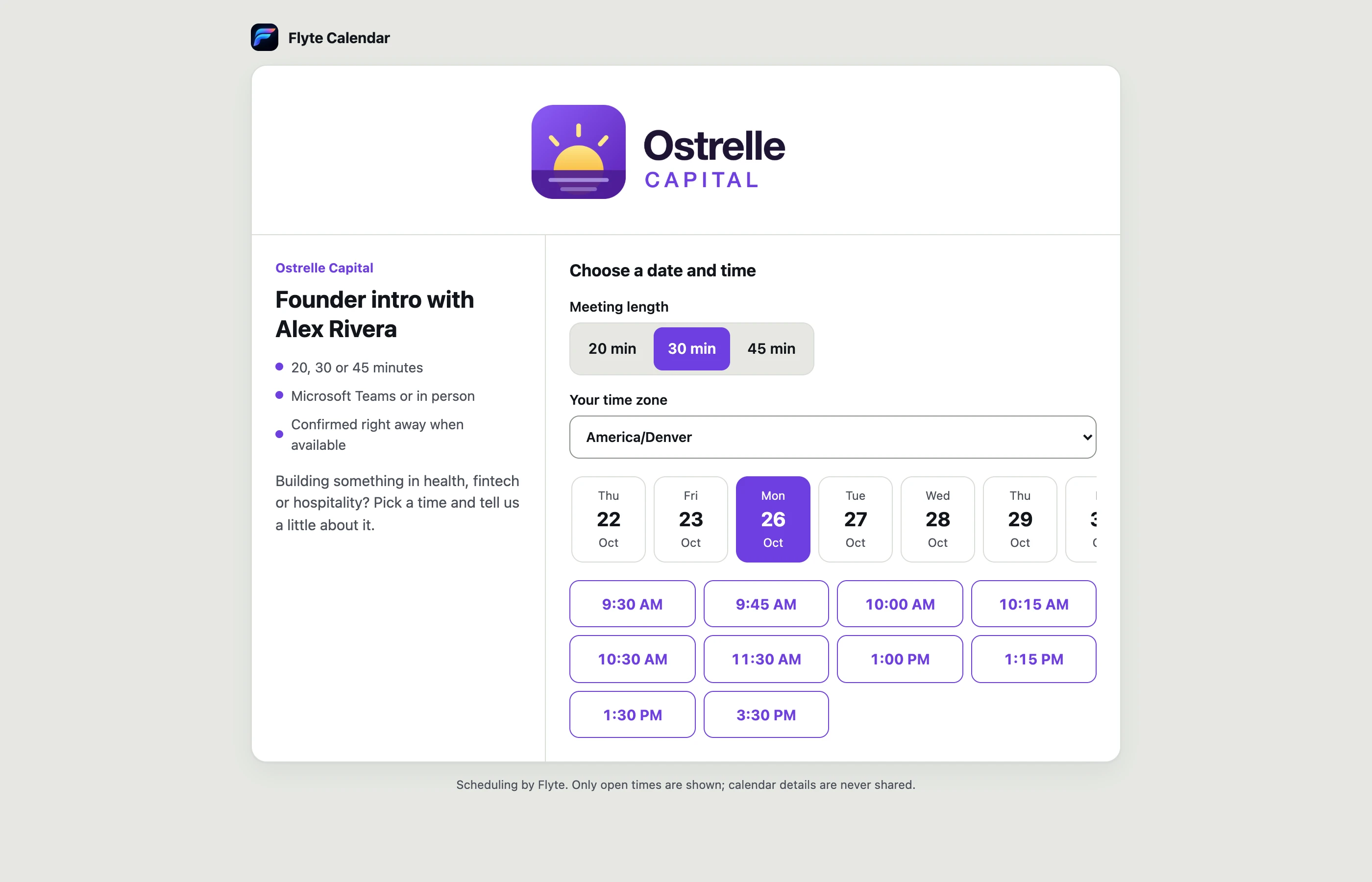
Illustrative Flyte booking page with synthetic demo data: Ostrelle Capital's logo and violet brand color on a founder intro with Alex Rivera, a choice of 20, 30 or 45 minutes over Microsoft Teams or in person, and the open times on one day.

Pricing

Simple pricing. No productivity ransom.

Everything you need. None of what you don't. Monthly prices, in US dollars.

Powerful tools. Sane pricing.

Solo

One person, every calendar

$15/month

Get started
  • Every Outlook calendar across every company in one view, with no events copied between calendars
  • Tasks Flyte plans into real free time for you to approve, with deadlines and recurring tasks
  • Where I'll be: your places on the calendar
  • Booking links with your logo and colors
  • Family can see your calendar, add to it or ask first, with your own approval rules for evenings, dinners, travel and more
  • Per-person time zones, Microsoft Teams meetings and an Inbox

Executive

You and your assistant

$45/month

Get started
  • Everything in Pro, plus:
  • An assistant who schedules for you: proposes or adds, and your approval rules apply
  • Protected meetings need your OK
  • Family and assistant approvals, while the details stay private
  • Program projects with dependencies and milestones
  • Priority onboarding
  • Up to 5 people included

FAQ

Straight answers.

Something else on your mind? Ask us for a walkthrough and we'll reply by email.

Which calendars does Flyte work with?

Microsoft Outlook and Microsoft 365 calendars, from work and personal Microsoft accounts. Connect one account per company, or as many as you have; each one stays separate, with its own sign-in.

Does Flyte copy my events between calendars?

No. Flyte shows all your calendars together in one view instead of cloning events from one calendar into another, so there's one version of every meeting.

Who can see my calendar?

Only the people you invite and the companies you join (Flyte shows exactly who will see what before you connect), and only what you share with them. With busy-only access they see when you're busy, not titles, people, places or reasons; those details are removed on our servers before anything reaches their screen.

Do family members need a paid seat?

No. Family members are always free, on every plan. Teammates and assistants count toward the 5 people included on Pro and Executive, and each extra person is $5 a month.

How do I sign in?

With a one-time code sent to your email. There are no passwords to remember.

Can I cancel?

Yes. You can stop using Flyte at any time and ask us to delete your account.

Prefer a walkthrough?

Tell us how you work, how many companies you run and who helps you schedule, and we'll show you Flyte with that in mind.

  • A reply from a person, by email
  • Your calendars stay yours: nobody sees them unless you share them

Request a demo

Tell us who you are and we’ll reply by email to set up a walkthrough.

We use this only to reply about a demo.

Time to a better you

Your time can take you further.

Every calendar, task, project and person, in one calm view.